
~~~~~~~~~~~~~~~~~~~~~~~~~~~~~~~~~~~~~~~~~~~~~~~~~~~~~~~~~~~~~~~~~
Backing up your iPhone
One thing that everyone should do is to Backup your
iPhone. It is very easy to; it’s
as easy plugging in your phone into your computer. I have MacPro Book with iTune and you can use MS-Windows
with iTunes for this. Now the backing up doesn’t stop there, because I also
backup my MacOS X too so I have saved my backup on another backup.
Now
may ask why backup my phone? It good and save you a lot of time if something
should go wrong with your phone, like say if a child puts a password on your
phone, and they are gone away for the weekend. No worries, if you have a backup of your phone in
iTunes. I will have another
section that will go through step by step how to fix this. Another good reason,
is when you decide to upgrade your iPhone, you can use your backup to restore
your Contacts, iCal and any other apps on your old phone.

The first thing is you fire up iTunes and then plug in your
iPhone. iTunes will fined your
phone. So here I Selected
“Automatically Back Up” and “This Computer”. This will save the backup on the computer hard-drive. You can backup on “iCloud”. Other “Options” I have selected “Automatically
sync when this iPhone is connected”, this will sync up your iTunes Music,
podcasts, books, apps etc.. With your iPhone.

You can manually or force a backup by pressing “Back Up
Now”.
Making your own Ring Tones
Making your own ring tones can be fun and cheap way of
getting ring tones and a nice way to know who is calling you. I will be using iTune 11 to create the
ring tone. You can do this in Mac
OS X or MS-Windows.

So let make a ring tone, so you fire up your iTunes and pick a song that you like to use as your ring tone. Then you [MacOS X] press "ctrl" and mouse click [Windows] right click and select "Get Info".

A new windows will pop up, and select "Options", and you check "Start/Stop Time" and enter in the start, where you want your ring tone to start, and end. Normally ring tone is about 30 seconds. Then click on "Ok".


[MacOS X] press "ctrl" and mouse click and select "Show in Finder" [Windows] right click and select "Show in Windows Explorer"

So now we need to rename the file extension, so that your iPhone knows that it is a ring tone. So SongName.m4a to SongName.m4r

Both MacOS X and MS-Windows will warn you that you are about to rename file extension. Make sure that you use the ".m4r".

So now you'll need to delete your ring tone from your iTune playing list for your music


One other thing that you'll need to do is to go back to the song and then you [MacOS X] press "ctrl" and mouse click [Windows] right click and select "Get Info". And go to the "Options" and uncheck the "Start/Stop Time". If you don't do this the next time that you play the song all that it will play is the 30 seconds .. Now it time to add to your phone, so plug in your iPhone and "Sync" it up. Now you go to your contacts and change your ring tones and you'll see your new ring tone(s).
~~~~~~~~~~~~~~~~~~~~~~~~~~~~~~~~~~~~~~~~~~~~~~~~~~~~~~~~~~~~~~~~~~~~~~~
Creating "Ignorer List" (Block Calls)
If you are getting those you don't want you can create ignorer list ..

The first thing you'll want to do is to open up Quick Time and create a new audio file of "Dead Air", meaning no sound. And then add it to your Ring Tones.
So now you create a "New Contact" you can call what every you like, but I'm going to call it "MyIgnorerList"

So here I add in the name

Now that I got the name added in, so now it the Phone Number(s)
So add them all the numbers that you want to ignore
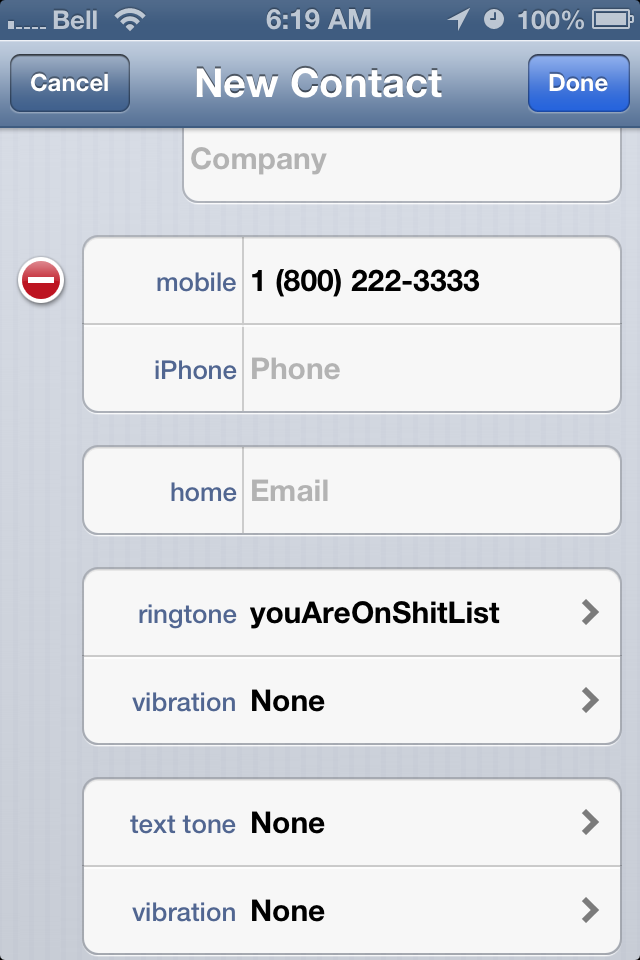
So iPhone dosen't come with a "Block Caller" so this is how we can make a work around for it
"Ringtone" -> the audio file you created with dead air. If you choose to use anything else, it will play it.
"Vibration" -> None
"Text Tone" -> None
"Vibration" -> None

So now that you have created Ignore list, when this person calls you, it will display the number and play the audio file with the dead air and no vibration so you can easily ignore that incoming call.


No comments:
Post a Comment